2 Simple Ways to Extract GPS Coordinates from Images
September 4, 20212 min read536 words
I'll show you two simple ways to extract Exif (Exchangeable image file) data from images. You can do this with almost any picture.
The takeaways
- 01
You can do this with almost any picture.
What to do nextOpen your current almost plan today and identify the one gap you would not want an auditor to find.
- 02
Background Exif is data embedded in a digital picture.
What to do nextAdd background to the next leadership review as a standing item, not a one-time slide.
- 03
It includes the date and time the picture was taken, the type of camera used, camera settings, and GPS coordinates.
What to do nextRun a 20-minute tabletop with your team this month using includes as the scenario.
- 04
People leave this information in images they post online.
What to do nextAsk your security lead this week for the one-page view of people in your environment, and read it end to end.
I'll show you two simple ways to extract Exif (Exchangeable image file) data from images. You can do this with almost any picture.
Background
Exif is data embedded in a digital picture. It includes the date and time the picture was taken, the type of camera used, camera settings, and GPS coordinates. It also includes other information.
People leave this information in images they post online. Sometimes it leads to their arrest. Take AnonWormer, Higinio O Ochoa III. He used his Twitter account to post a picture of a woman holding a sign that said "PwNd by w0rmer & CabinCr3w." AnonWormer left the Exif data in the picture. The FBI extracted the GPS coordinates. They sent local authorities to the location in a Melbourne, Australia suburb. They found Ochoa and arrested him. You can reference the "Hacking cases's body of evidence" article for more info on this case.
Method 1
In the first method, we’ll use a browser plugin. There are many browser plugins that offer Exif capabilities. For this example, we’ll use the Firefox Add-On, FxIF. Chrome’s Extension EXIF Quick View works in a similar manner, except you just have to hover the mouse over the image, as shown below:
EXIF Quick View. Chrome Extension Example
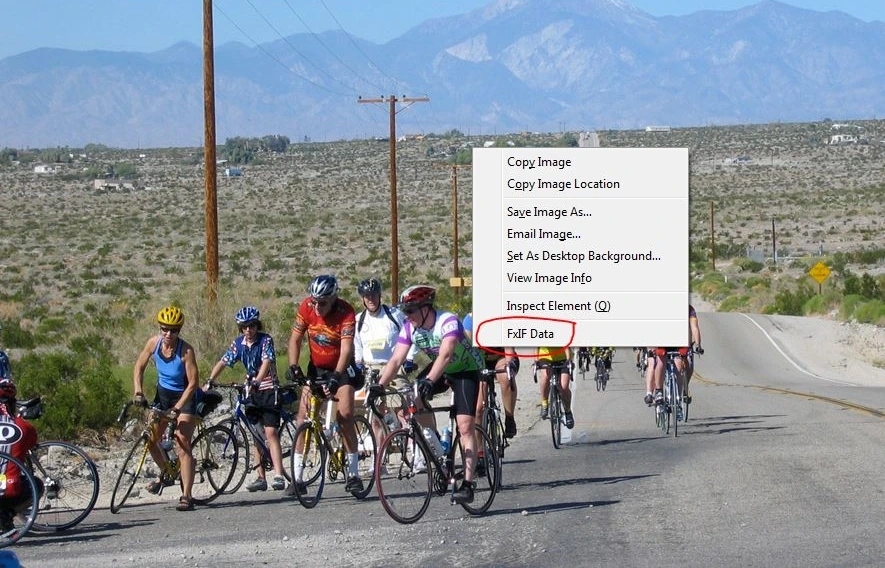
With FxIF, you can right-click on any image in Firefox and choose FxIF Data:
Selecting the FxIF Data by Right-Clicking on an image in Firefox.
The image of the cyclists located in the FxIF example can be found here:
http://www.myriad-online.com/images/forum/IMG_4692.jpg
If Exif data is available, you’ll see similar information to the FxIF Details image below. Circled in red are the GPS Coordinates and other information about the location of the picture.
FxIF Details. Image GPS Coordinates
From here you can click on the Map Link. FxIF links to OpenStreetMap. You can also copy the GPS Coordinates and paste into Google if you prefer Google maps.
OpenStreetMap view of cyclists image
Method 2
For method 2, we’ll use an application to view the Exif data. There are a number of applications out there, but Opanda IExif is simple and effective, even if it is old 🙂 With Opanda, you open the image or drag the image into Opanda that you want to view the Exif data on. The Opanda “Exif” view shows information similar to here:
Opanda Exif View
The “GPS” view shows information similar to below. You can also right-click on the globe next to GPS and select “Locate Spot on Map by GPS”, which will open the coordinates in Google maps.
Opanda Locate Spot on Map by GPS GPS Coordinates using Google Maps from Opanda
The picture used in the Opanda example is located here:
cute-kitten.jpg
Frequently asked
Keep reading
-
3 Steps to Hide Data in an Image Using Steganography - Christian Espinosa
Same thread: cybersecurity.
Read essay → -
Top 10 Largest Healthcare Data Breaches by Number of Records Stolen - Christian Espinosa
Same thread: cybersecurity.
Read essay → -
The Latest Cybersecurity Incidents and What You Can Learn from Them - Christian Espinosa
Same thread: cybersecurity.
Read essay →